
 EN
EN  FR
FR Étape 1: Turn on your FireStick and go to the home page.
Step 2: Scroll to "Search ".
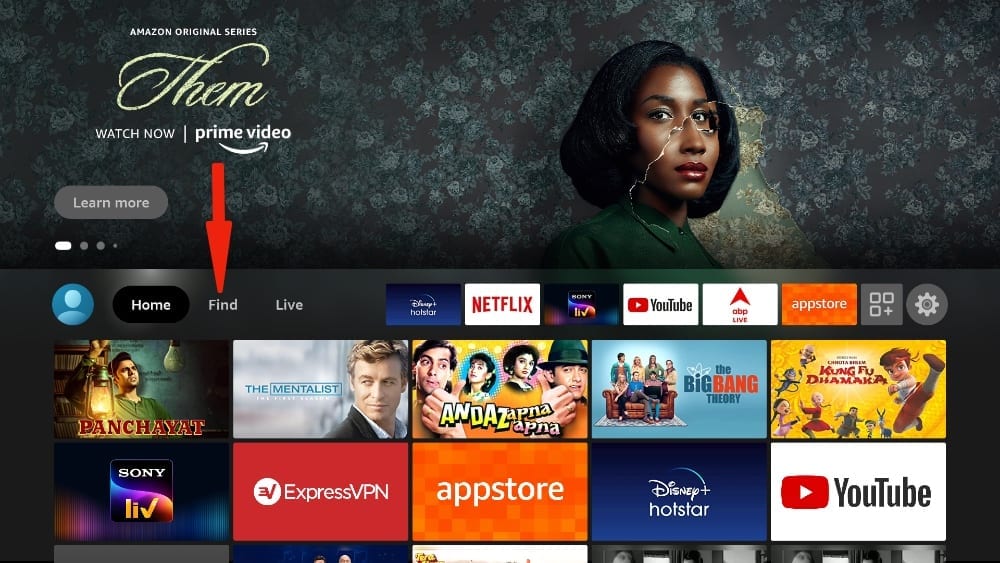
Step 3: Select "Search ". A virtual keyboard will appear.
Step 4: Type Downloader using the virtual keyboard or using voice assistant Alexa from your remote control.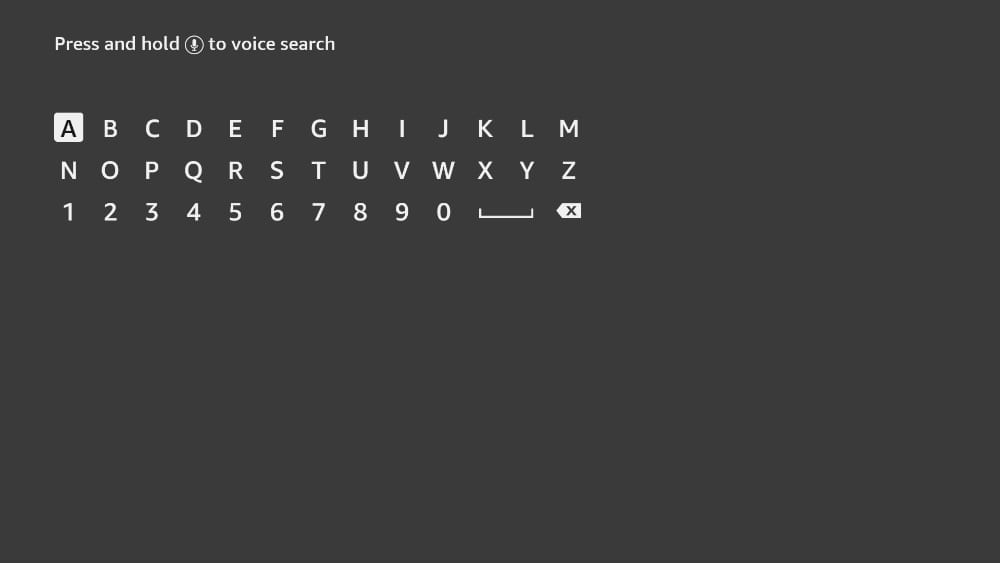
Step 5: Locate and select Downloader among the results of the research. You can recognize the application to its background is orange.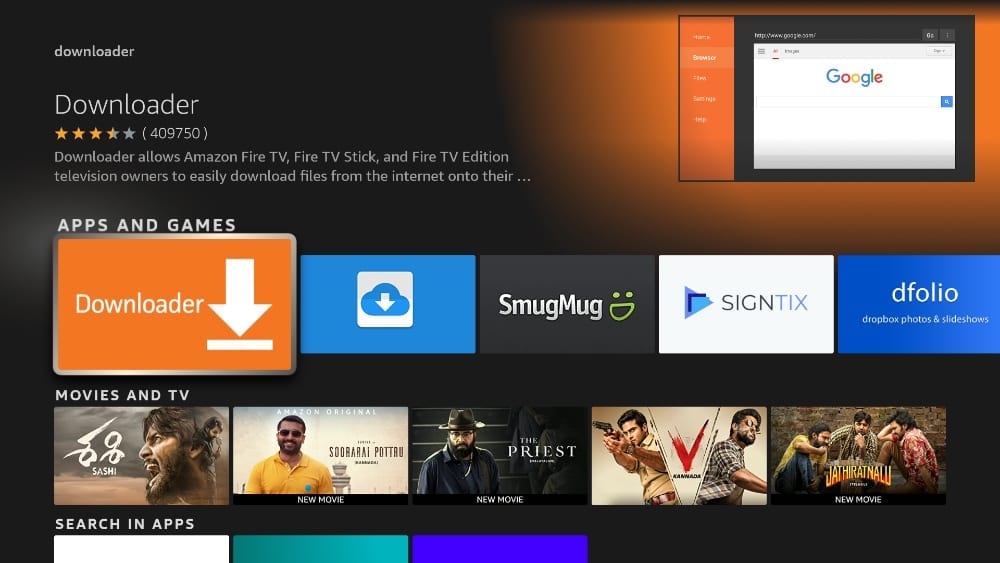
Step 6: Select Get or Download to install the app on your FireStick.
Comme mentionné ci-dessus, nous utiliserons Downloader pour télécharger et installer l’application IPuserTV sur la FireStick. Mais avant de pouvoir continuer, nous devons modifier certains paramètres votre FireStick.
Step 7: Press the home button your remote FireStick and hold the button down.
Step 8: Go to Settings.
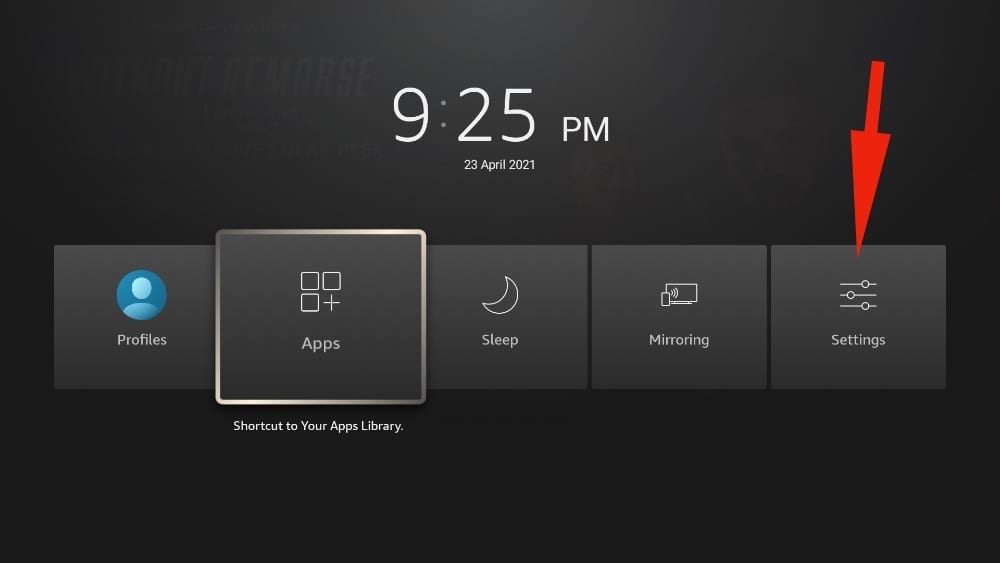
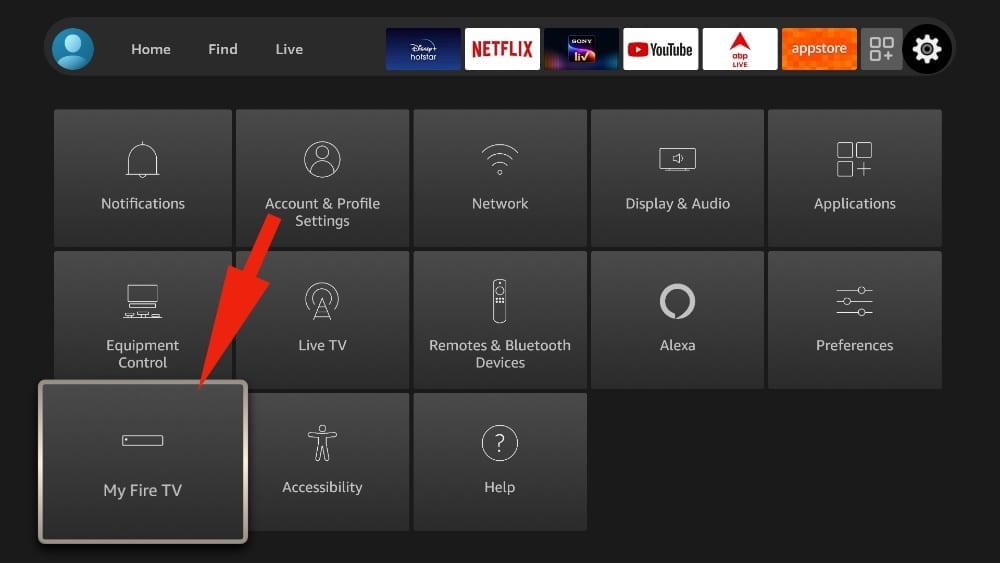
Step 9: Scroll to the bottom and select My Fire TV.
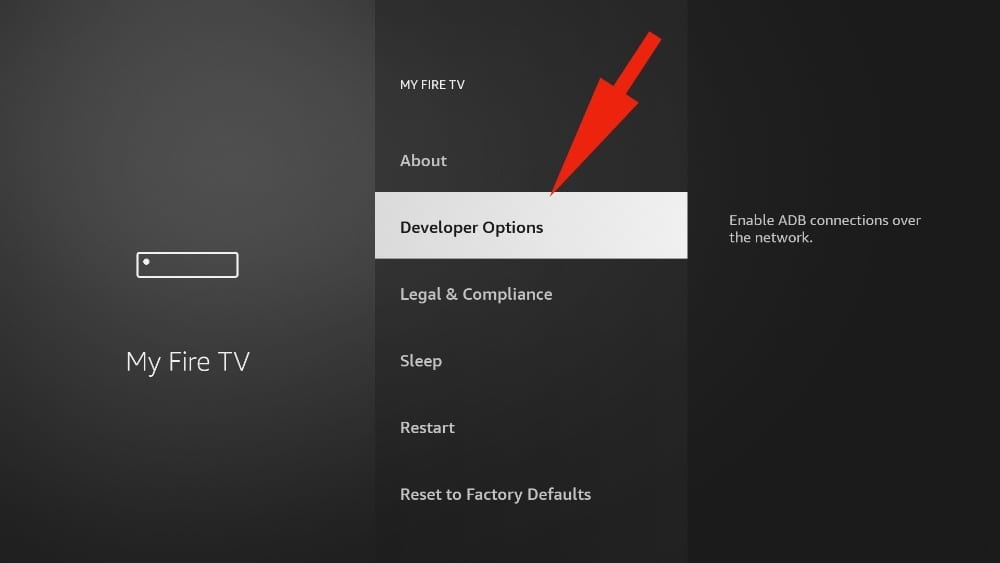
Step 10: Select Developer Options in the following menu. (If you do not see " Options for developers ", tap 7 times on the " OK " button on your remote control to make it appear)
Step 11: You will see Applications unknown sources. It is disabled by default, Enable.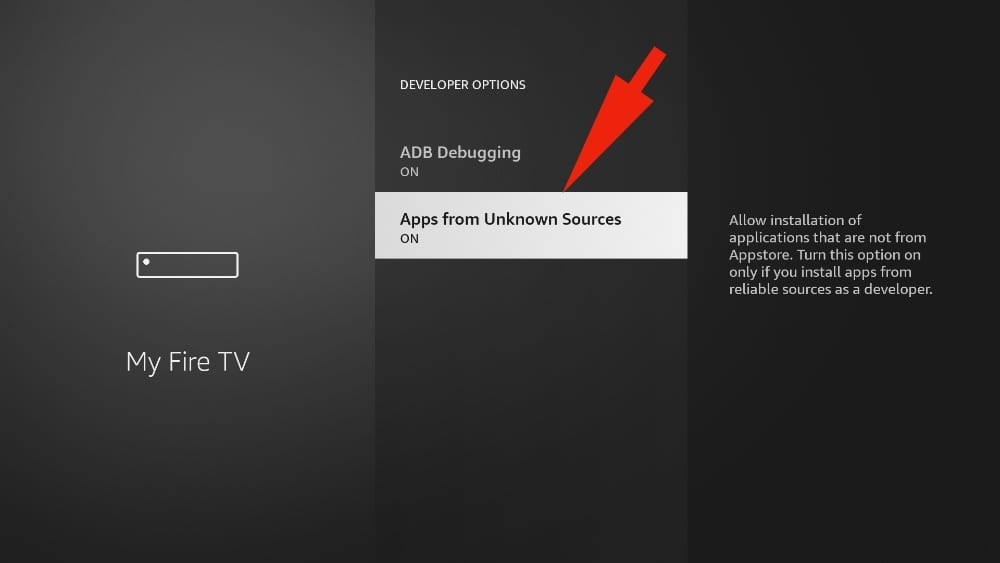
Step 12: Return to the home page of FireStick. Find and open Downloader.
Step 13: Check the box " Enter a URL ".
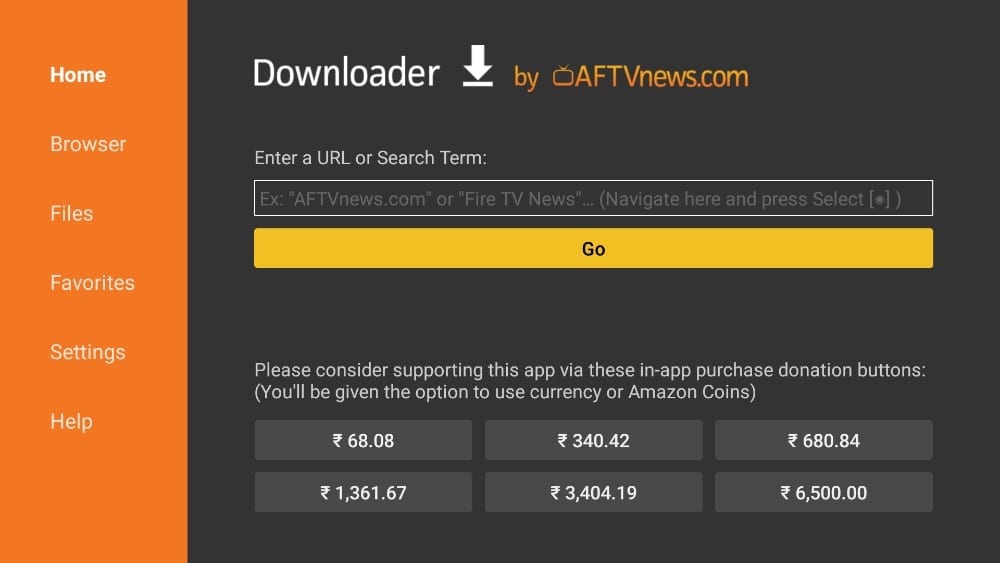
Step 14: Enter this address: app.ipuser.tv and select the button Gb.
Step 15: Downloader will start to download the application IPuserTV from the Web.
Step 16: You will be notified when the download is finished. Select Install. You have now successfully installed the app IPuserTV on your FireStick.
Step 17: Select the internal players as shown in the image below:

Step 18: Now open the app IPuserTV and click on Add Portal.

Step 18: Portal Nickname you will enter the name of the service you have chosen (Edge, WaveTV or StockTV),
Enter the username and password we sent you. Then click on Connect.

